Read, diff, and edit without leaving the terminal
AI agents reference files constantly. Instead of alt-tabbing to an editor every time, we built markdown, code, and diff viewers right into the terminal workspace.
The problem
Working with AI coding agents means constantly looking at files. The agent changes a file and you want to see the diff. It references a markdown doc and you want to read it. It edits code and you want to check what it wrote. Every time, you alt-tab to VS Code or a browser, find the file, look at it, switch back.
This context switching kills your flow. You're not just losing seconds — you're losing the mental thread of what the agent is doing. By the time you've checked the file and come back, you've lost track of where the conversation was heading.
Markdown viewer with file browser
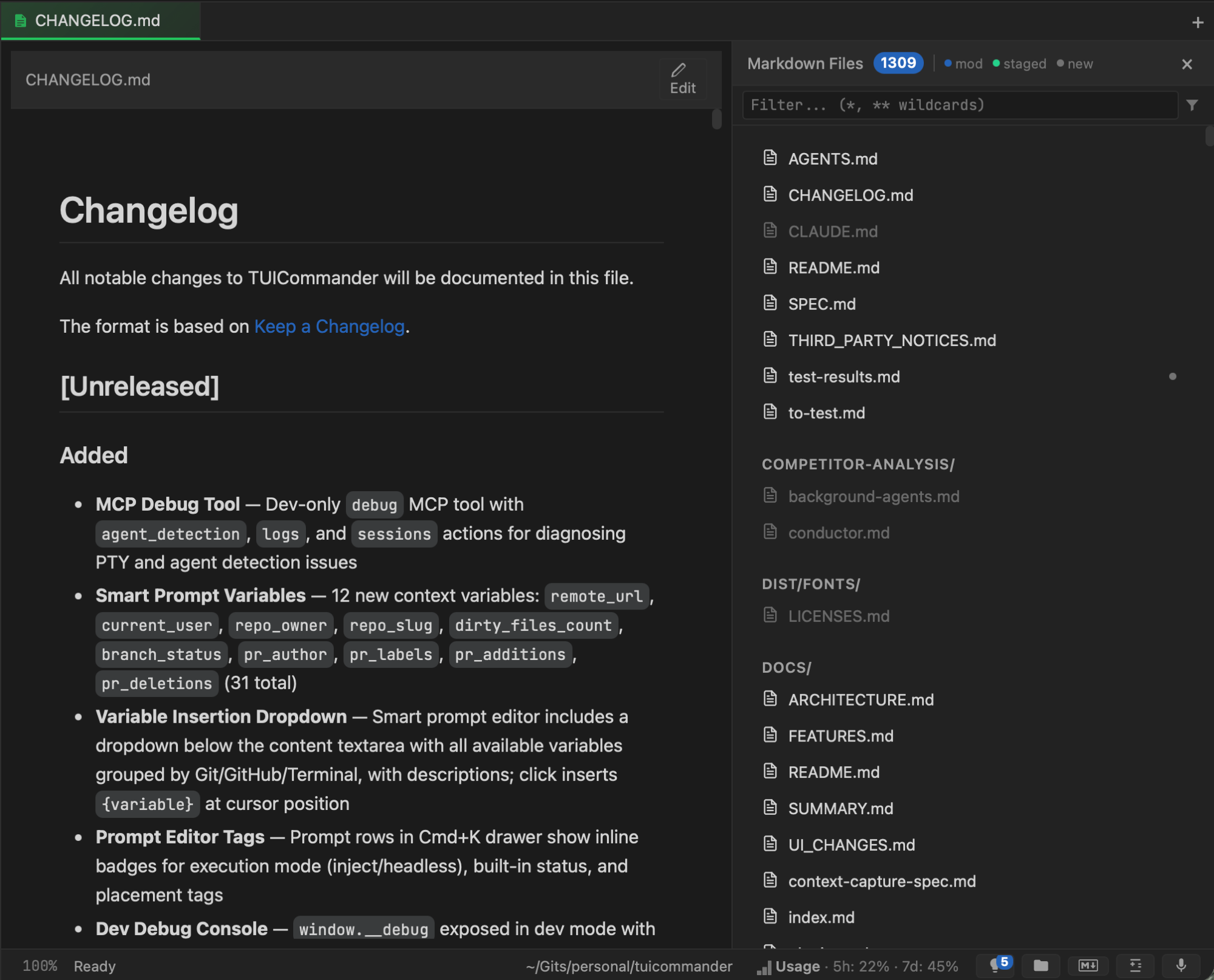
When an agent outputs a file path ending in .md or .mdx, clicking it opens the file in a rendered markdown tab — right next to your terminal. Full rendering with headers, code blocks, lists, links, inline code. The tab gets a green tint so you can distinguish it from terminal tabs at a glance.
The right panel shows a markdown file browser with all markdown files in your repo, organized by directory. A filter field supports wildcards. Status dots indicate which files are modified, staged, or new — so you can see what the agent changed without running git status. Click any file to open it, click Edit to switch to the code editor for that file.
Code editor with project tree
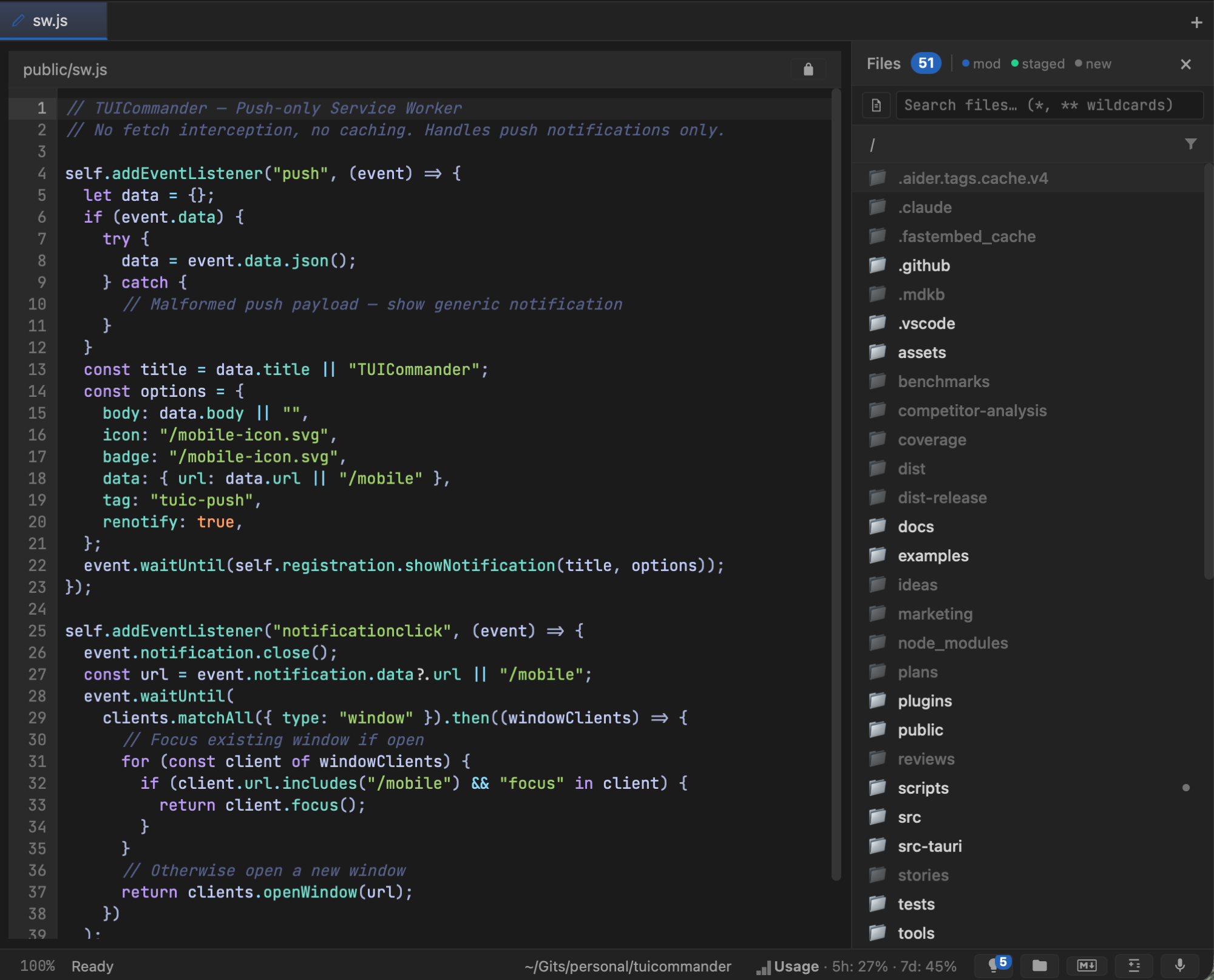
For code files, TUICommander opens a syntax-highlighted editor tab powered by CodeMirror. Line numbers, proper indentation, language-aware highlighting. The right panel becomes a full file browser — the entire project tree with folders, search, and the same modification status dots.
This isn't meant to replace your IDE for heavy editing. It's for the quick checks and small fixes that happen constantly during agent work: verifying what the agent wrote, making a one-line correction, checking a configuration file. The tab is blue-tinted so you can tell it apart from terminals and markdown viewers.
File browser with tree view
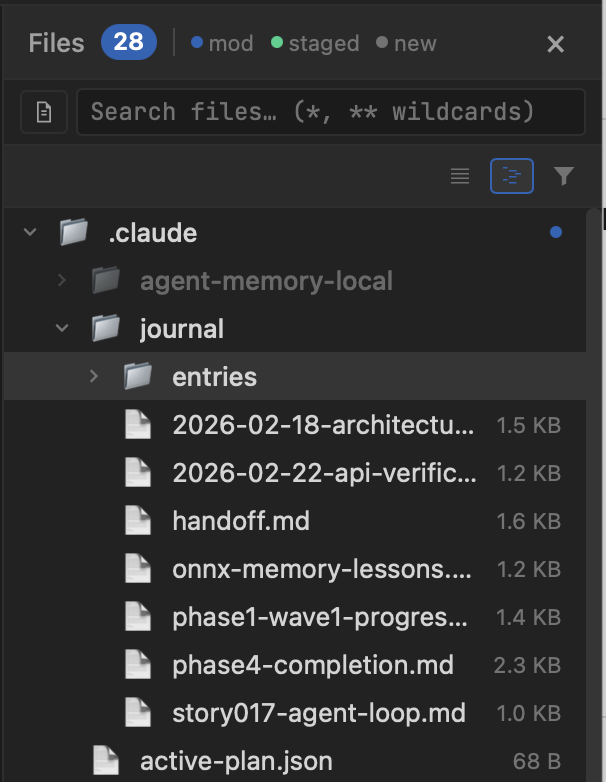
The file browser panel now supports two view modes: flat list and tree. The flat list works like before — navigate directories, breadcrumb path, click to open. The tree view shows a collapsible hierarchy with lazy-loaded subdirectories. Click a folder chevron to expand it — children are fetched on demand, so even large repos stay responsive. File sizes, git status dots, and context menus work the same in both modes.
Toggle between list and tree with the toolbar buttons at the top right. When you're searching (typing in the search bar), the view automatically switches to flat results regardless of your mode preference — tree view returns when you clear the search.
Side-by-side diff viewer
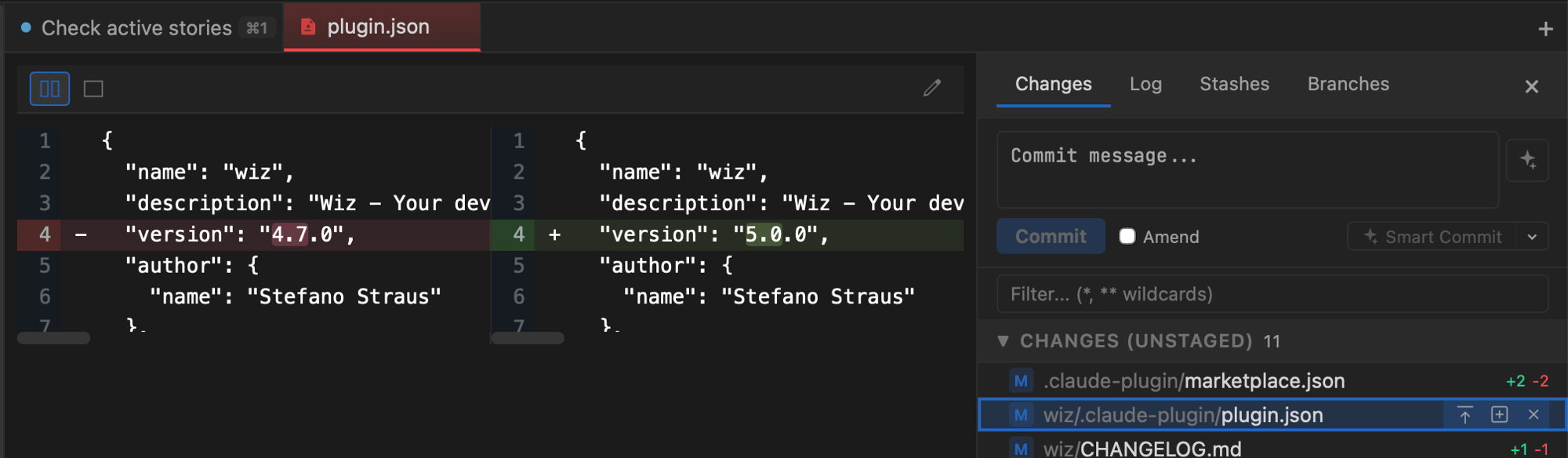
The diff viewer is where you spend the most time during agent work. Click any changed file in the Git Changes panel and it opens in a split diff tab — old version on the left, new on the right, with word-level highlighting showing exactly what changed. You can toggle between split and unified view.
But viewing diffs is only half the story. You can act on them: click individual lines to select them, shift-click for ranges, and use the floating action bar to restore specific hunks or lines. This is surgical undo — if the agent changed 50 lines but got 3 wrong, you revert just those 3 without touching the rest. The tab is red-tinted, the Git Panel on the right shows the full change list with per-file addition/deletion counts, and the Smart Commit button is right there for when you're ready to commit.
All-files diff scroll view
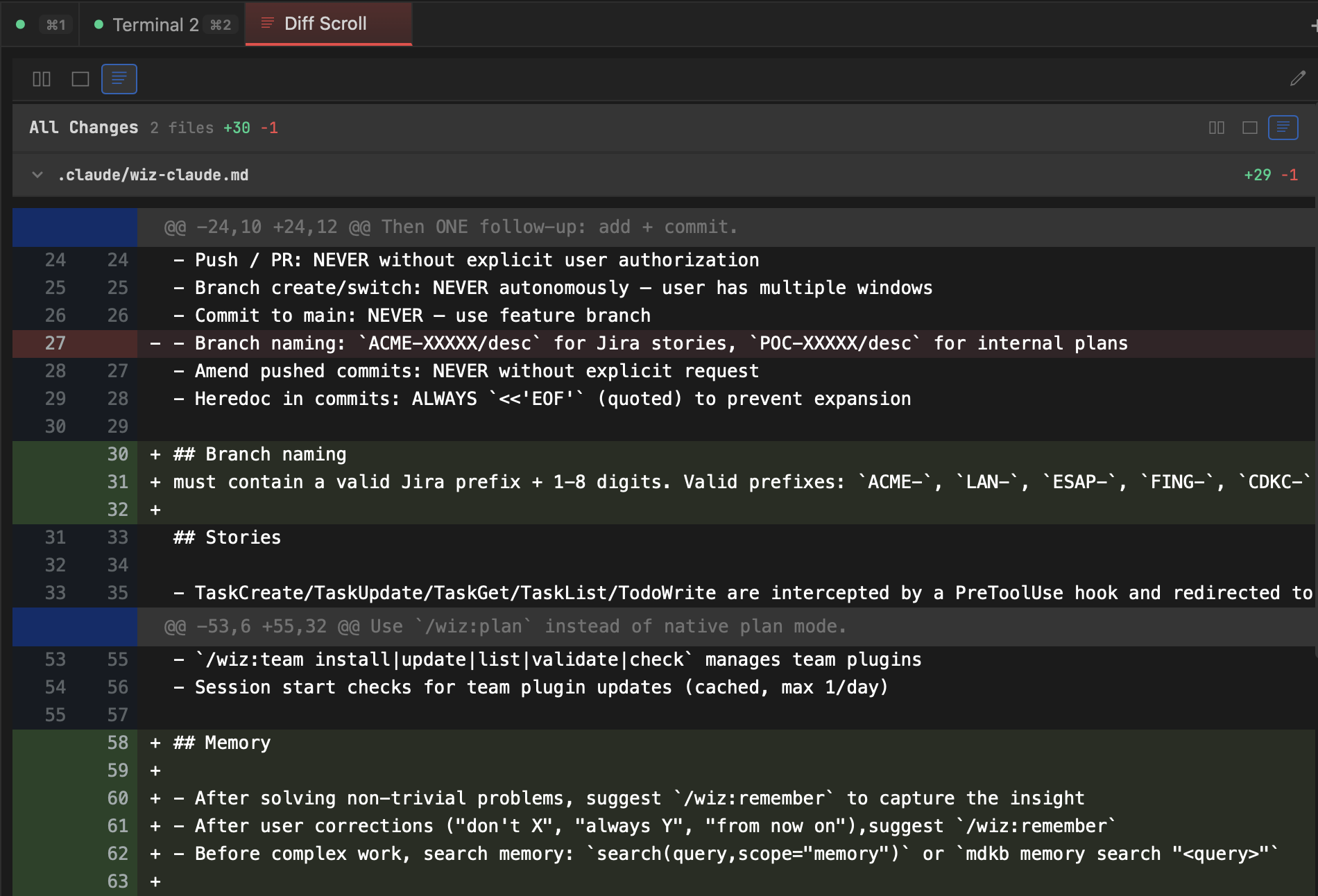
When an agent makes changes across multiple files, clicking through them one by one is tedious. The Diff Scroll view shows every changed file in a single continuous scroll — staged and unstaged changes combined. Each file section is collapsible, with addition/deletion counts and a clickable filename that opens the file in the editor. A sticky header tracks the total: files changed, lines added, lines removed.
You can toggle between split (side-by-side), unified (inline), and scroll (all files) modes from the toolbar. The scroll view reloads reactively on every git operation — stage a file and the view updates immediately. Click any filename to jump to the editor for a quick fix, then come back to review the rest.
Find files and content from the command palette
The command palette (Cmd+P) now doubles as a file finder. Type ! to search files by name — results appear instantly as you type, showing the full path. Type ? to search inside file contents — matches show the file path, line number, and the matched text with highlighting. Press Enter to open the file in the editor (content matches jump to the exact line).
This means you never need to leave the keyboard to find a file. The palette transitions seamlessly between command mode (actions and shortcuts), filename mode, and content search — just change the prefix character.
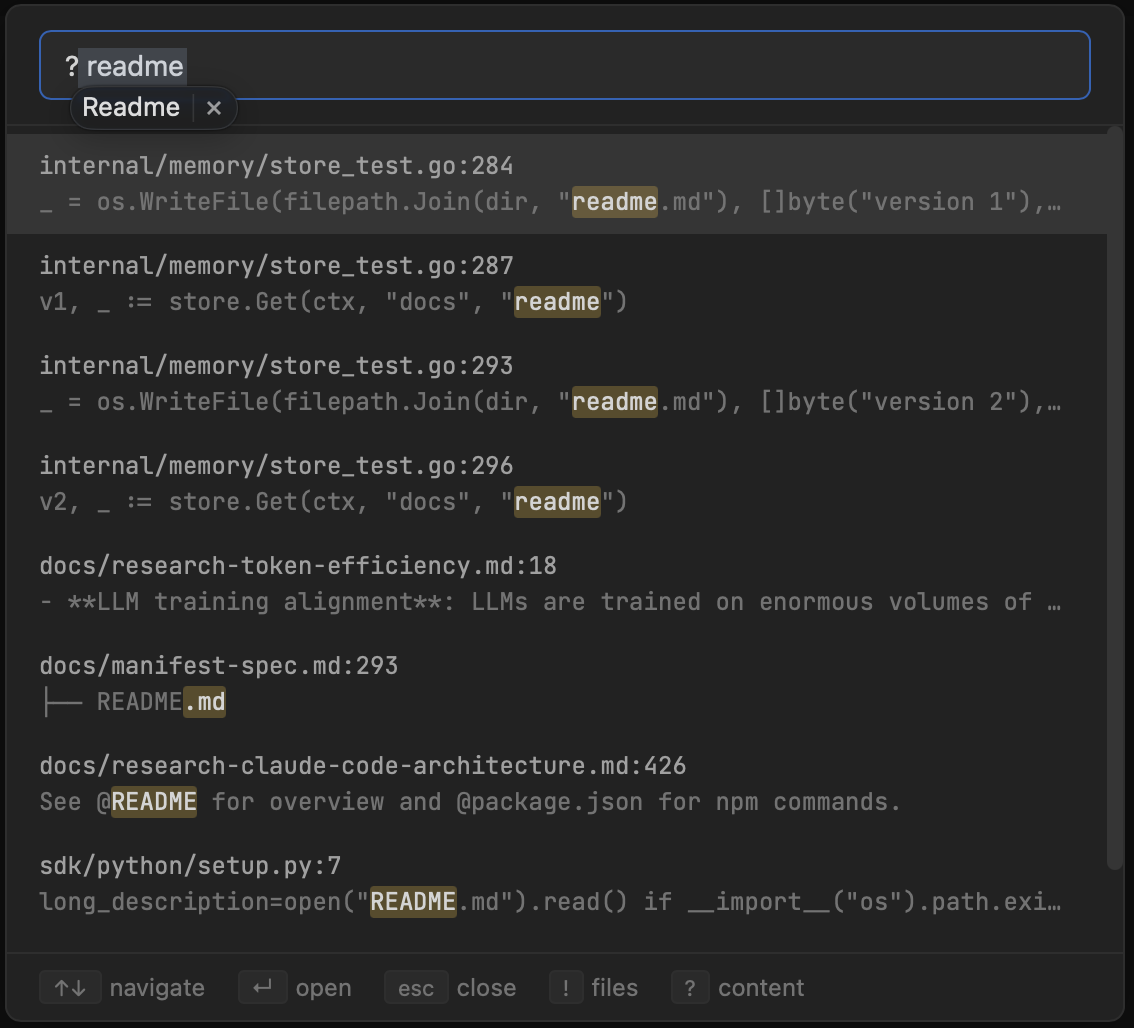
?readme to find every mention across the codebase. Matches show file path, line number, and highlighted text. The footer hints remind you that ! switches to filename search.Everything is a tab
The key design decision was making viewers first-class tabs, not modal popups or side panels. A markdown file, a code editor, a diff view — they sit in the tab bar alongside your terminal sessions. You switch between them with Cmd+1 through Cmd+9, the same way you switch between terminals. Each tab type has its own color accent (green for markdown, blue for editor, red for diff, purple for panels, amber for remote sessions) so the tab bar becomes a visual map of your workspace.
This means you can have an agent running in tab 1, the diff it's producing in tab 2, and the markdown spec it's working from in tab 3. All visible, all one keyboard shortcut away, no app switching.
Clickable file paths tie it together
The viewers aren't just for manually opening files. TUICommander auto-detects file paths in terminal output — when an agent prints a path, it becomes a clickable link. Markdown files open in the viewer, code files open in the editor (or your configured IDE), diffs open in the diff tab. The agent's output becomes a navigation surface. It says "I modified src/hooks/useSmartPrompts.ts:52" and you click to see exactly what it did.