Why we built Smart Prompts
We were copy-pasting the same instructions to AI agents every day. So we turned them into one-click actions that know your context.
The problem
If you work with AI coding agents in the terminal, you know the routine. You want the agent to commit your changes with a good message, so you type out the instructions. Again. You want it to review a PR, so you paste the same prompt you used yesterday — but first you need to look up the PR number, the branch name, and what files changed.
Every interaction required two things: remembering the right prompt, and manually gathering the context the agent needs to do its job. Branch name, diff stats, PR number, dirty file count — information that TUICommander already has, but the agent doesn't.
This wasn't a minor annoyance. It was a daily friction that added up. And when our community started asking for exactly this — a way to automate the repetitive parts of talking to agents — we knew it was time.
What Smart Prompts are
Smart Prompts is a library of reusable, context-aware instructions that you can fire with a single click or keyboard shortcut. TUICommander ships with 24 built-in prompts covering the most common workflows: committing, reviewing, explaining changes, creating PRs, addressing review comments, and more.
The key insight is that prompts shouldn't be static text. Each prompt is a template with variables like {diff}, {branch}, {pr_number}, and {staged_diff} — 31 context variables in total. When you trigger a prompt, TUICommander resolves every variable automatically from your current git state. The agent gets a complete, ready-to-execute instruction without you typing a single character of context.
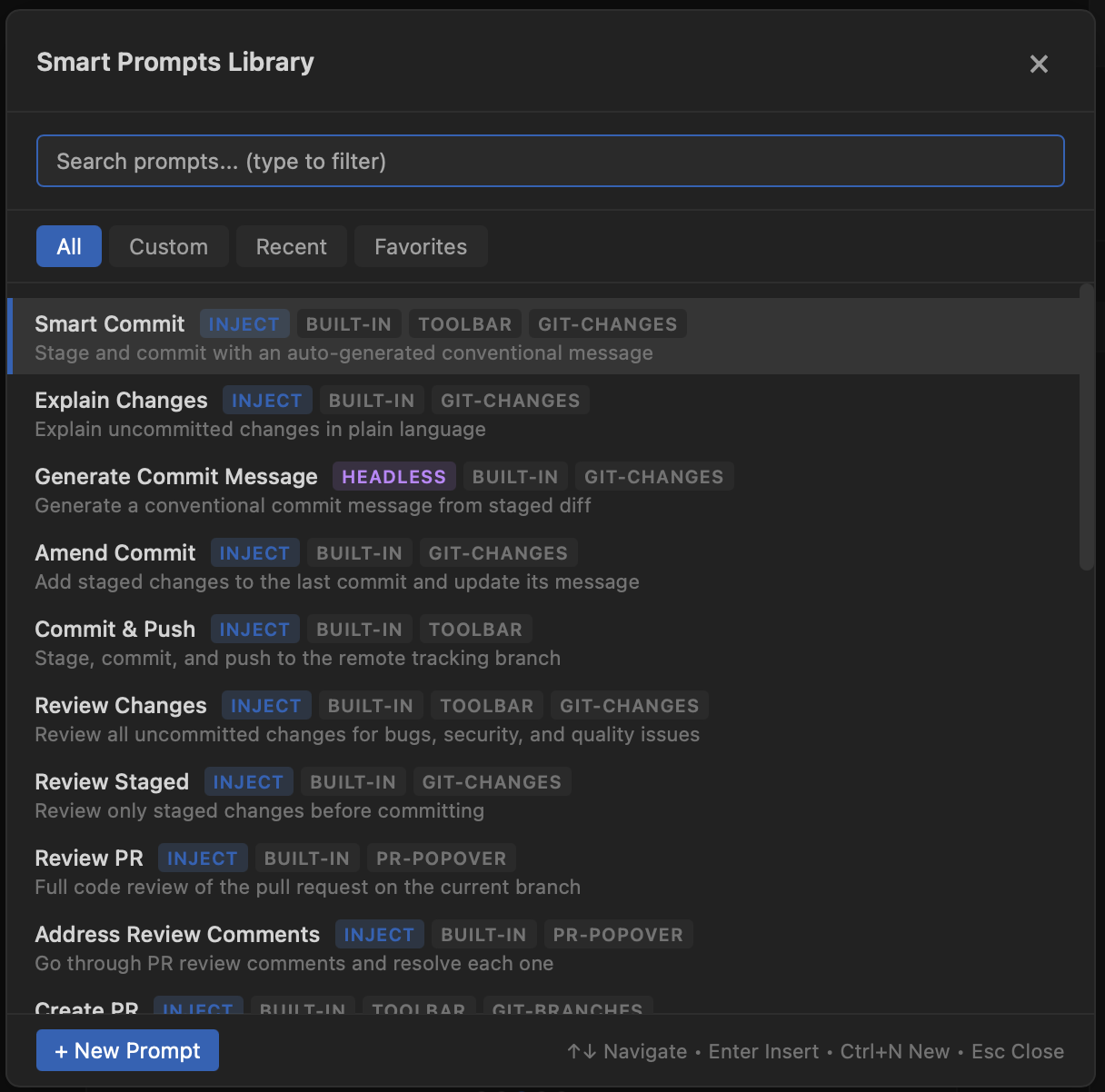
Two execution modes
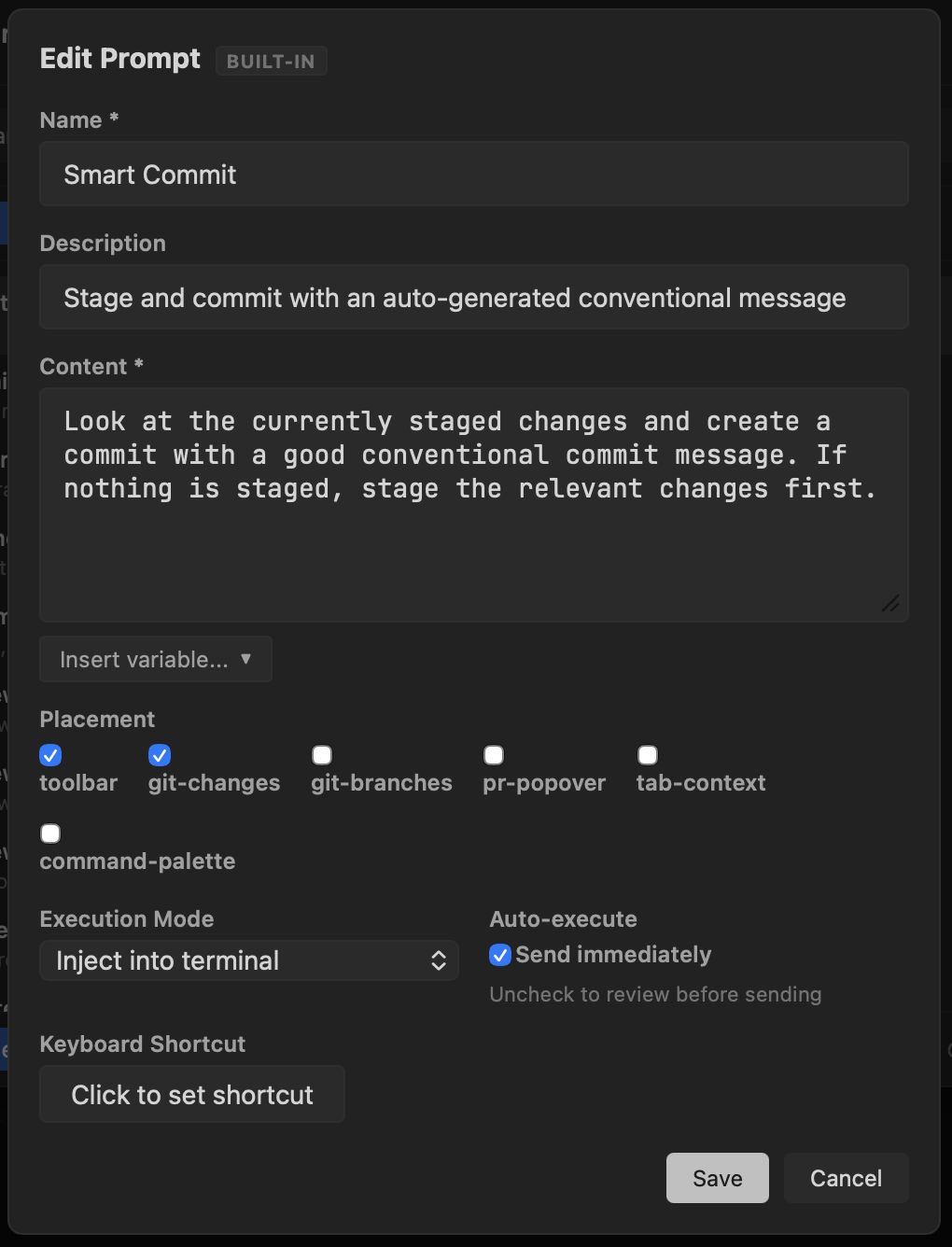
Inject mode writes the prompt directly into the active terminal session. The agent in that terminal picks it up as if you typed it. This is the most common mode — you're having a conversation with an agent and want to give it a specific instruction.
Headless mode spins up a one-shot agent execution in the background. No terminal needed. This is useful for fire-and-forget tasks like generating a commit message from a staged diff — the result appears when it's done, without interrupting your workflow.
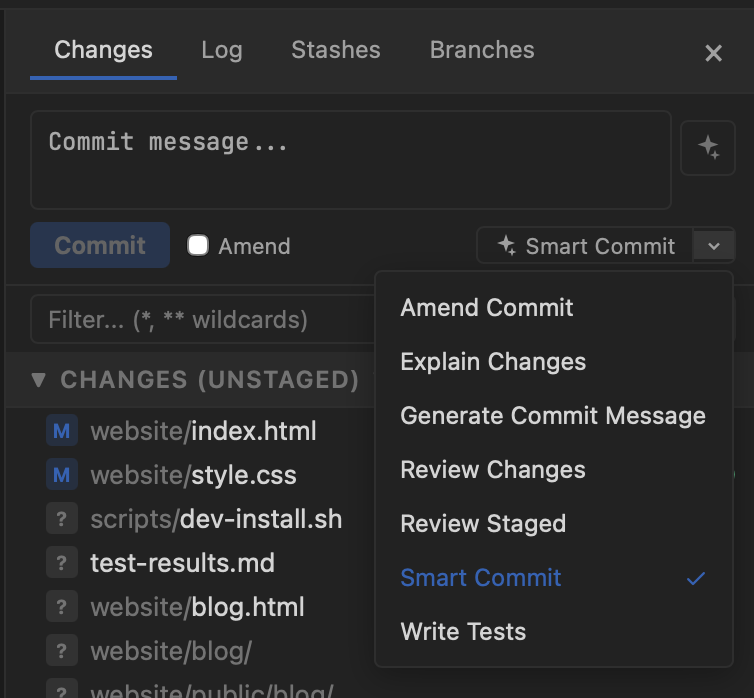
Git operations without leaving the flow
The Git Changes panel integrates Smart Prompts directly where you work with files. Instead of switching to a terminal to ask an agent to commit, review, or explain changes, you click the dropdown right next to the Commit button. Smart Commit stages relevant files and creates a commit with a conventional message — one click, no typing. Review Changes scans your unstaged diff for bugs and security issues. Explain Changes gives you a plain-language summary of what changed.
This matters because git operations are the most repeated part of any development workflow. Before Smart Prompts, you'd either do them manually (write the commit message yourself, review the diff by eye) or spend time instructing an agent to do it. Now the instruction is pre-written, the context is pre-filled, and the action is one click away.
31 context variables, zero manual input
Every prompt can reference variables that TUICommander resolves automatically. The git layer provides {branch}, {diff}, {staged_diff}, {changed_files}, {commit_log}, {last_commit}, {conflict_files}, {stash_list}, {remote_url}, {current_user}, {base_branch}, {repo_name}, {branch_status}, and {dirty_files_count}.
The GitHub layer adds PR-specific context: {pr_number}, {pr_title}, {pr_url}, {pr_state}, {merge_status}, {review_decision}, {pr_checks}, {pr_author}, {pr_labels}, {pr_additions}, and {pr_deletions}. Terminal context includes {agent_type} and {cwd}.
This opens up use cases beyond simple commits. A "Review PR" prompt can include the full diff, the PR checks status, and the review decision — the agent gets everything it needs to give a meaningful review. A "Resolve Conflicts" prompt can list the conflicting files and the base branch so the agent knows what it's merging into. A custom "Deploy Check" prompt could include the branch status (ahead/behind remote) and dirty file count to warn before pushing.
They show up where you need them
Prompts aren't hidden in a menu. Based on their placement settings, they appear as buttons exactly where they're relevant: commit-related prompts show up in the Git Changes panel, PR prompts appear in the PR popover, branch prompts in the branch context menu. You can also access everything through the command palette or the dedicated Cmd+K drawer.
You can create your own prompts, customize the built-in ones, assign keyboard shortcuts, and choose whether a prompt auto-executes or pauses for you to review before sending.
What's next
We're working on expanding the headless execution mode with per-agent API configuration, so Smart Prompts can call different AI models depending on the task. A quick commit message doesn't need the same model as a full code review. We're also looking at chaining prompts — triggering a sequence of actions from a single click.