A terminal built for 8-hour sessions
Split panes, detachable windows, persistent sessions, find in content, and up to 50 concurrent terminals. We built a terminal for people who live in it all day.
The problem
Most terminal emulators are built for running one thing at a time. Open a tab, run a command, close it. That's fine for quick tasks. But when you're orchestrating AI agents across multiple repos, you're staring at terminals for hours. You need to see two agents side by side. You need to find that error message from 500 lines ago. You need a terminal that survives accidental closes. You need one that doesn't become unusable after 20 tabs.
We use TUICommander ourselves every day, for full workdays. Every feature here was born from actual friction — things that annoyed us at hour 4 and were unbearable by hour 8.
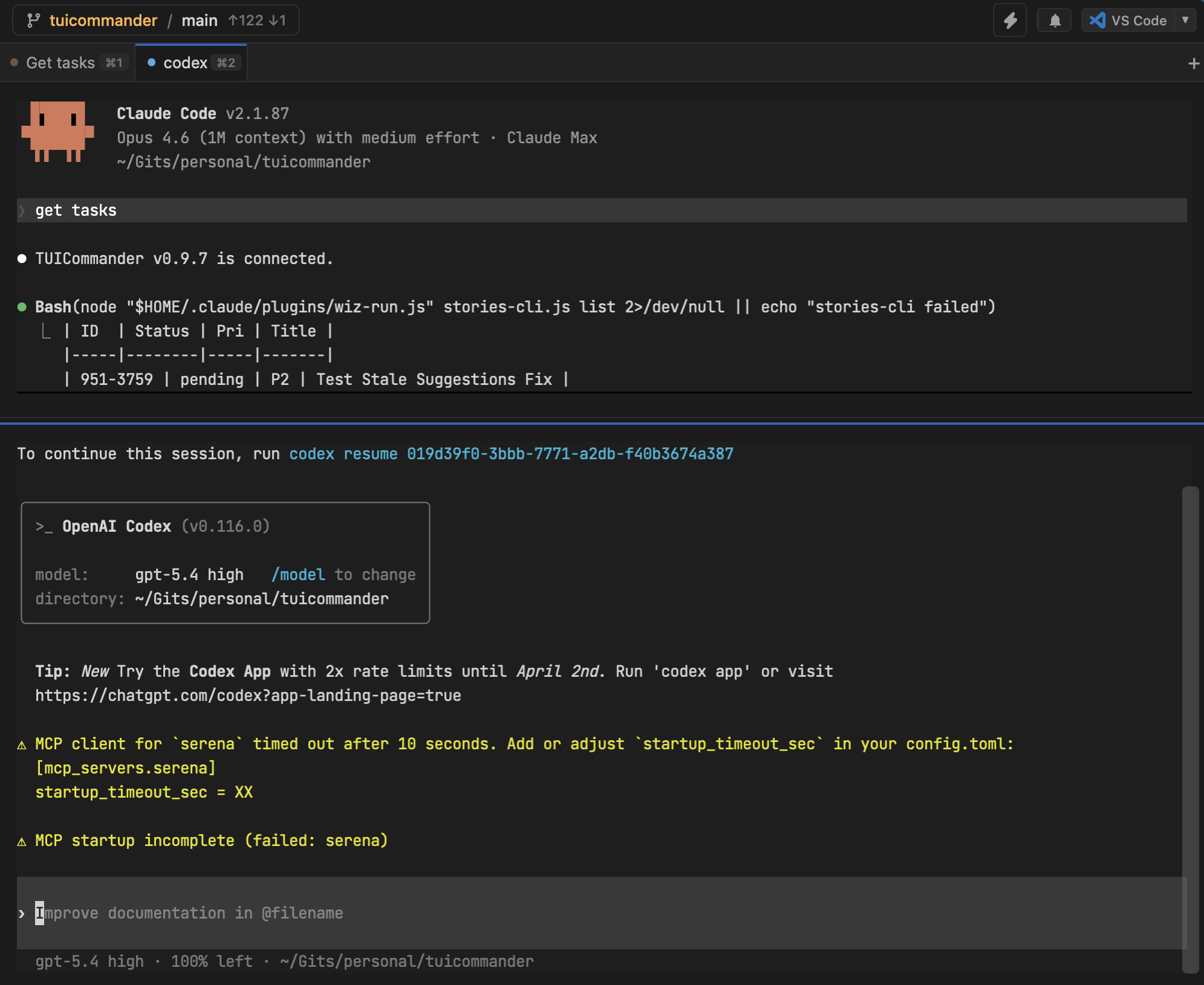
Split panes: see two things at once
Cmd+\ splits the current tab vertically — two terminals side by side. Cmd+Alt+\ splits horizontally — stacked. You can go up to 6 panes in the same direction, and resize them by dragging the divider. Alt+arrow keys move focus between panes.
The common use case: an agent running on the left, a shell on the right to check its work. Or two agents on the same repo, one implementing while the other reviews. Split layouts persist per branch — switch to a different branch and back, your layout is still there.
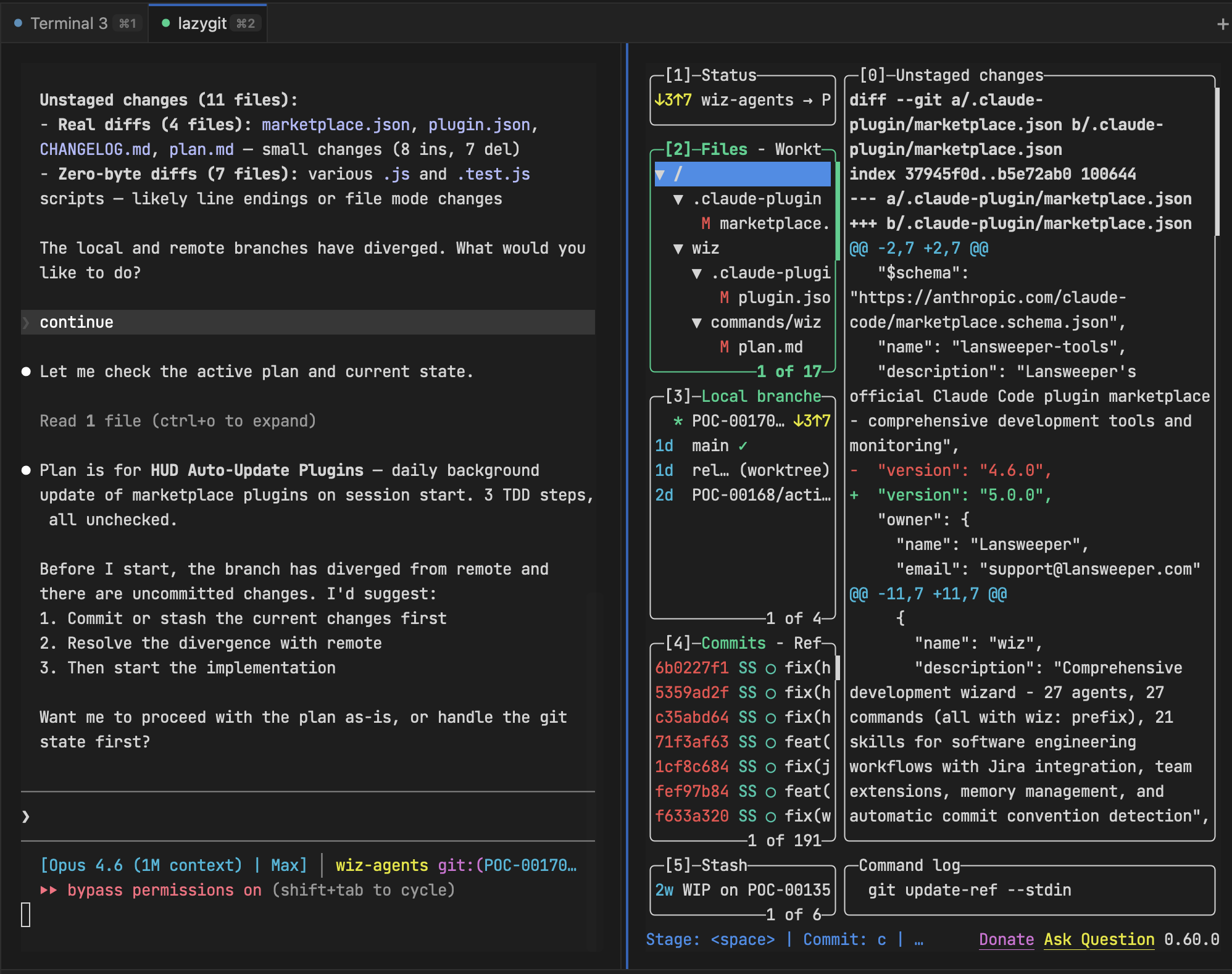
Detach to window: the second monitor workflow
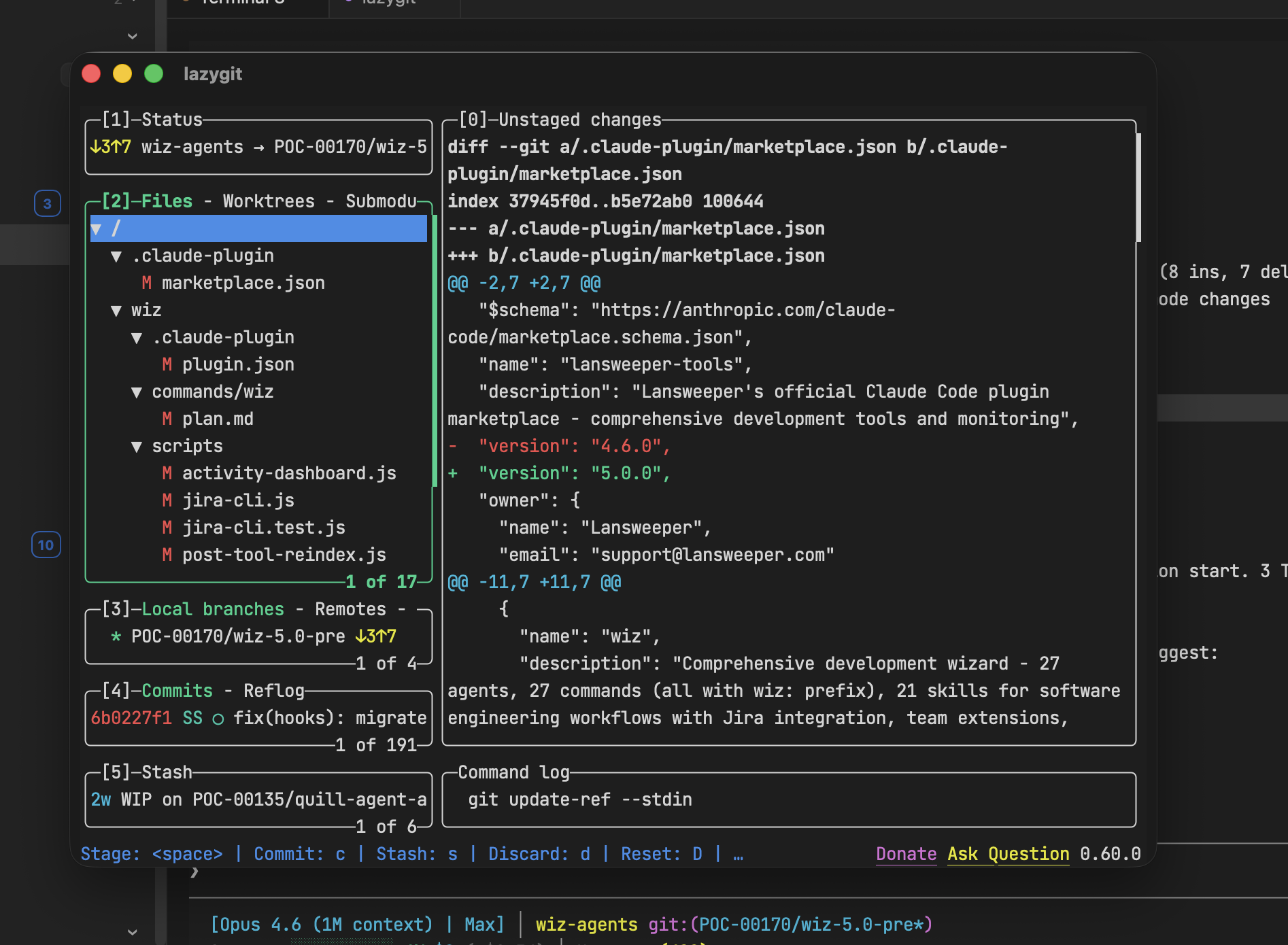
Right-click any tab and select "Detach to Window". The terminal pops out into its own floating OS window that you can move to a second monitor. The PTY session stays alive — it's the same session, just displayed in a different window. Close the floating window and the tab returns to the main window automatically.
This is how you use TUICommander with a dual monitor setup: main window on screen 1 with the sidebar and git panel, detached agent terminals on screen 2 where you can watch them work full-screen.
Sessions that survive everything
Terminal sessions persist across app restarts. Close TUICommander, reopen it, and your sessions are still there — same shell, same state. Sessions are restored lazily when you click the branch, so startup stays fast even with dozens of saved sessions.
Agent sessions get special treatment. If an AI agent was running when you closed the app, you get a clickable banner: "Agent session was active — click to resume." Press Space or Enter to resume, any other key to dismiss. No accidental re-injection of commands into a fresh shell.
Even Vite HMR reloads (during development) don't kill sessions. The webview can reload without the Rust backend dropping your PTY connections.
Find across everything
Cmd+F opens a search overlay, but it's context-aware. If you're in a terminal tab, it searches the terminal scrollback buffer with highlight decorations. In a markdown tab, it searches the rendered document. In a diff tab, it searches the diff content. Same shortcut, right behavior.
The search supports case sensitive, whole word, and regex modes. Navigate matches with Enter/Cmd+G (next) and Shift+Enter/Cmd+Shift+G (previous). A counter shows "N of M" so you know where you are in the results. When an agent produces 2000 lines of output and you need to find that one error, this is how you do it.
Tab management at scale
With 5+ agents, tab management matters. Tabs can be reordered by drag-and-drop. Pinned tabs stay visible across all branches instead of being scoped to one branch's session. Cmd+Shift+T reopens the last closed tab (remembers up to 10). Middle-click to close. Cmd+1 through Cmd+9 for direct switching.
When tabs overflow the tab bar, scroll arrows appear — and right-clicking them shows a dropdown of all clipped tabs. The + button always stays visible regardless of scroll position, so you can always create a new tab.
Each tab has a colored status dot (idle, busy, done, question, error) and a type-specific color tint (red for diff, blue for editor, green for markdown, amber for remote sessions). At 15 tabs, you can still tell at a glance what's what.
Clickable paths and per-terminal zoom
File paths in terminal output are auto-detected and become clickable links — validated against the filesystem before activation, so stale paths don't create dead links. Paths support :line and :line:col suffixes for precise navigation. Markdown files open in the viewer, everything else opens in your configured IDE.
Per-terminal zoom (Cmd+/- with Cmd+0 to reset) lets you bump up the font on the terminal you're currently reading without affecting others. Range is 8px to 32px, and the current zoom shows in the status bar.
The details that add up
Cmd+L clears the terminal display without killing processes. OSC 8 hyperlinks work (file:// URIs from agent output open in your system file handler). Progress bars via OSC 9;4 render natively. The terminal runs with truecolor support (TERM=xterm-256color, COLORTERM=truecolor) and outputs in UTF-8 by default.
None of these features are individually remarkable. But together they make the difference between a terminal you tolerate and one you actually enjoy spending 8 hours in. Every feature exists because we hit the limitation ourselves and decided it was worth solving.