Orchestrate agents
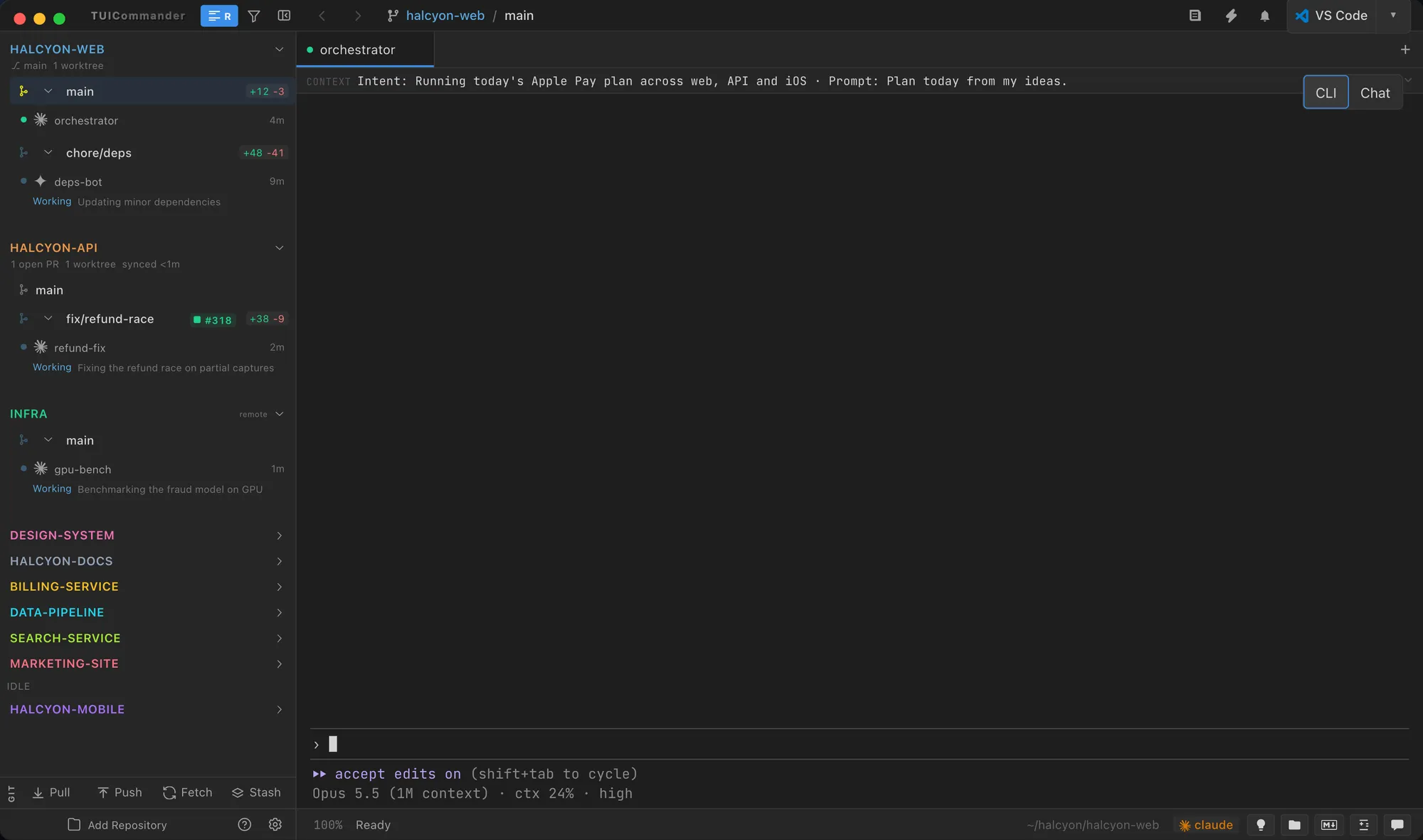
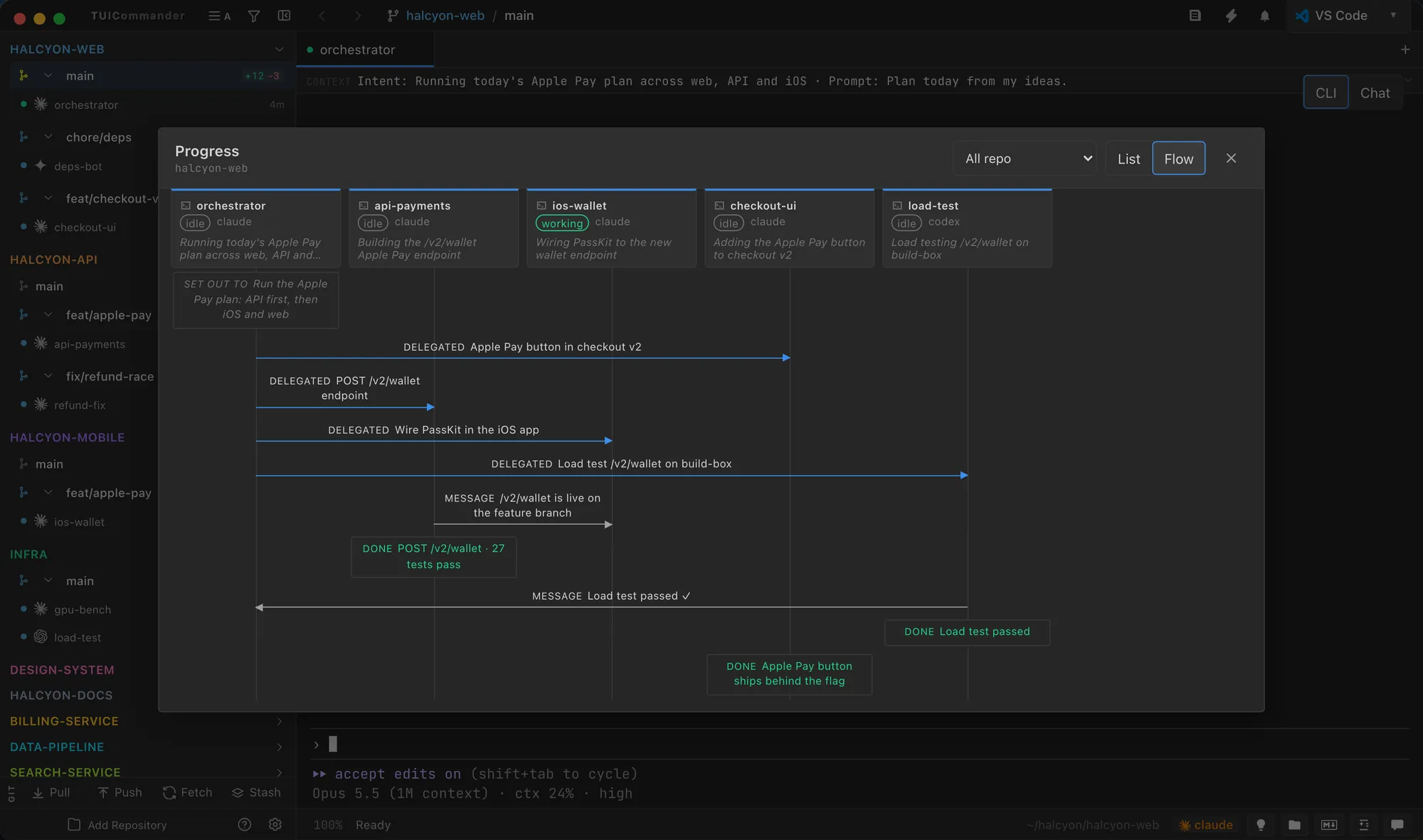
TUICommander knows what each agent is doing. You follow one orchestrator, and the rest come to you when they need you.
The rich layout adds facts to every row without losing density.

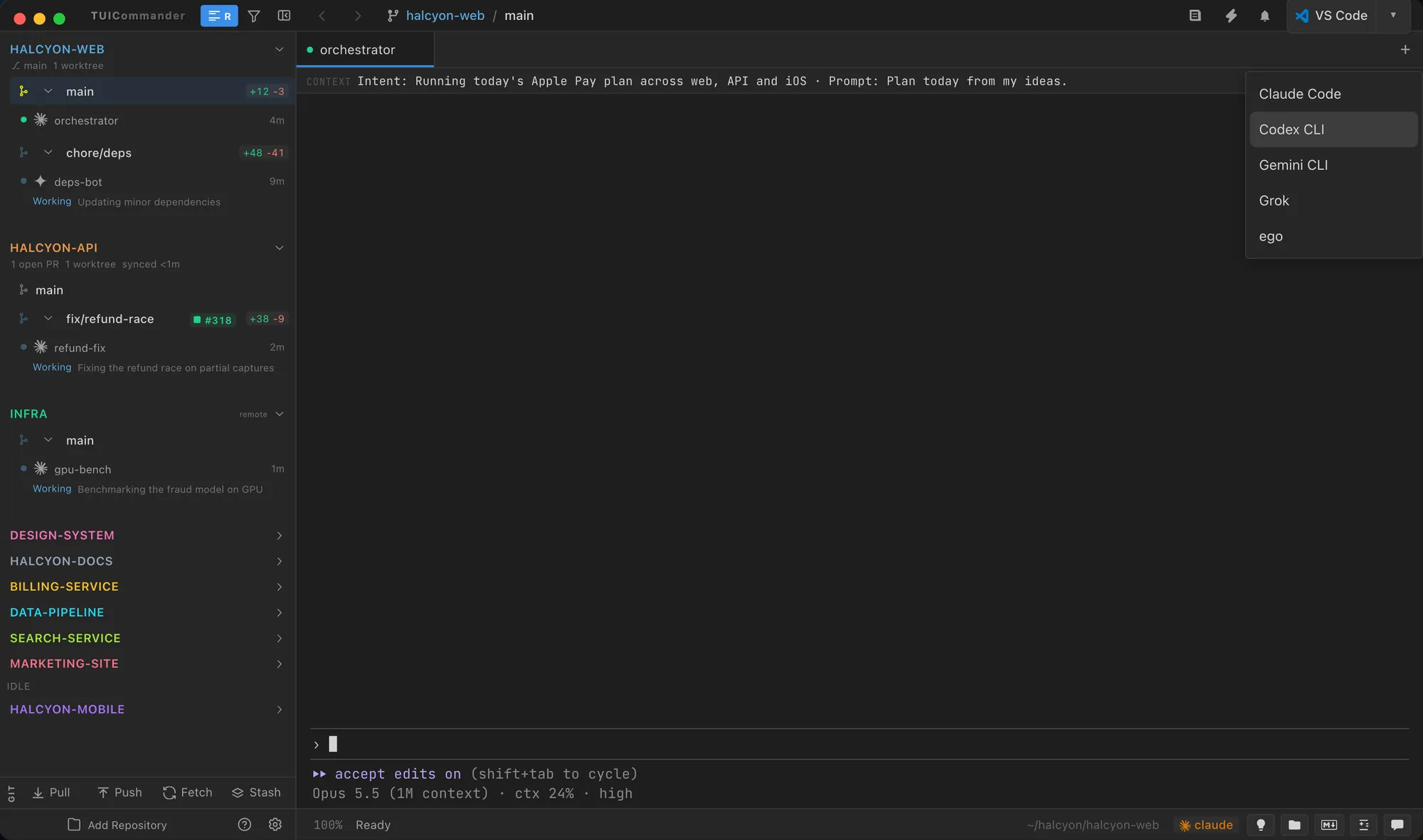
Open the agent menu and pick Claude Code, Codex, Gemini, Grok, ego or any other supported agent. The launch uses the run configuration you saved for it, with its own flags and environment, in the branch or worktree you are on.
Read the Agent Support guide →
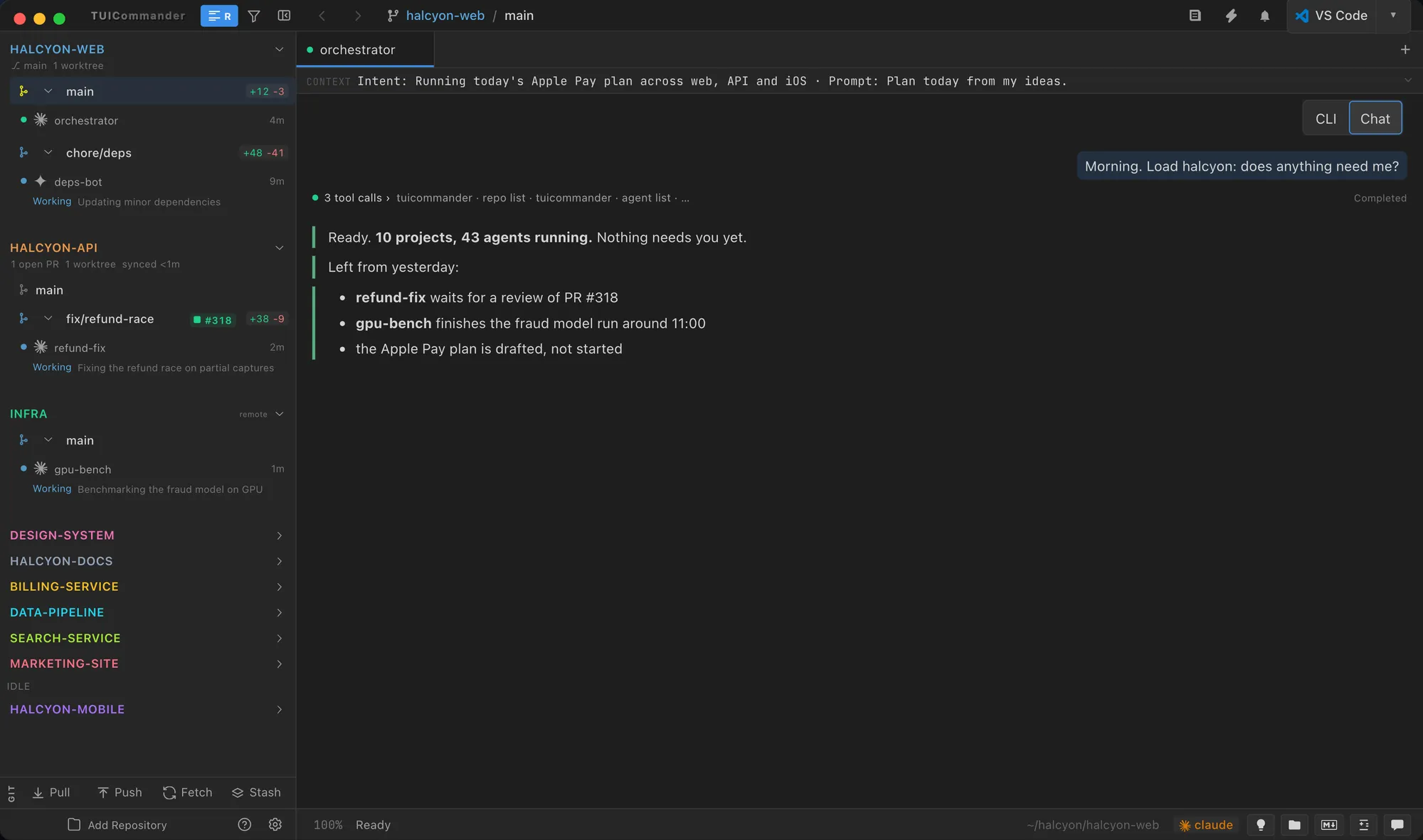
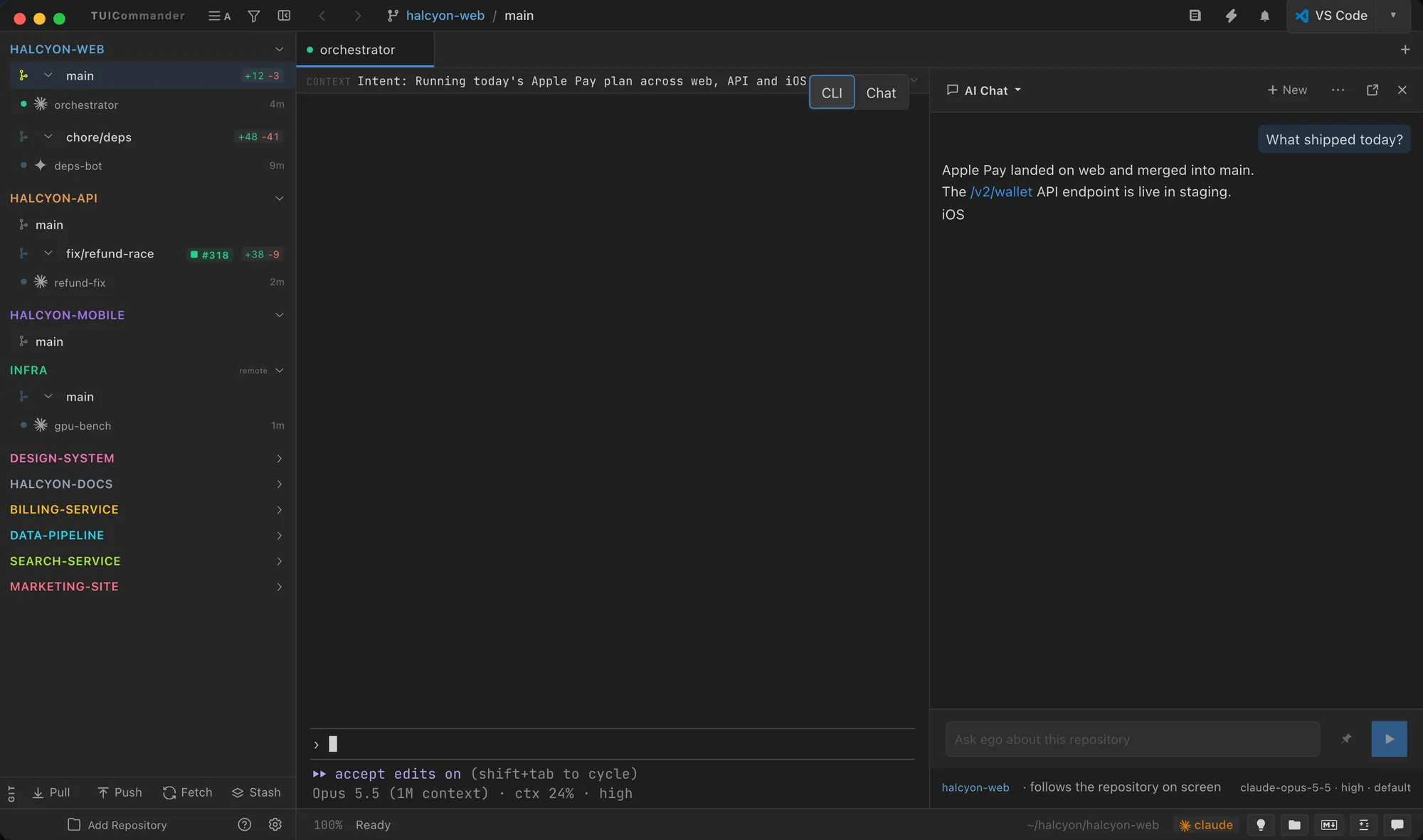
Terminals that run Claude Code, Codex, Grok or ego have a CLI | Chat switch. Chat shows the session as a conversation: your prompts, the agent's answers, and each tool call folded into one card. The terminal keeps running underneath, and you reply or queue the next task from the composer.
Read the Terminals guide →
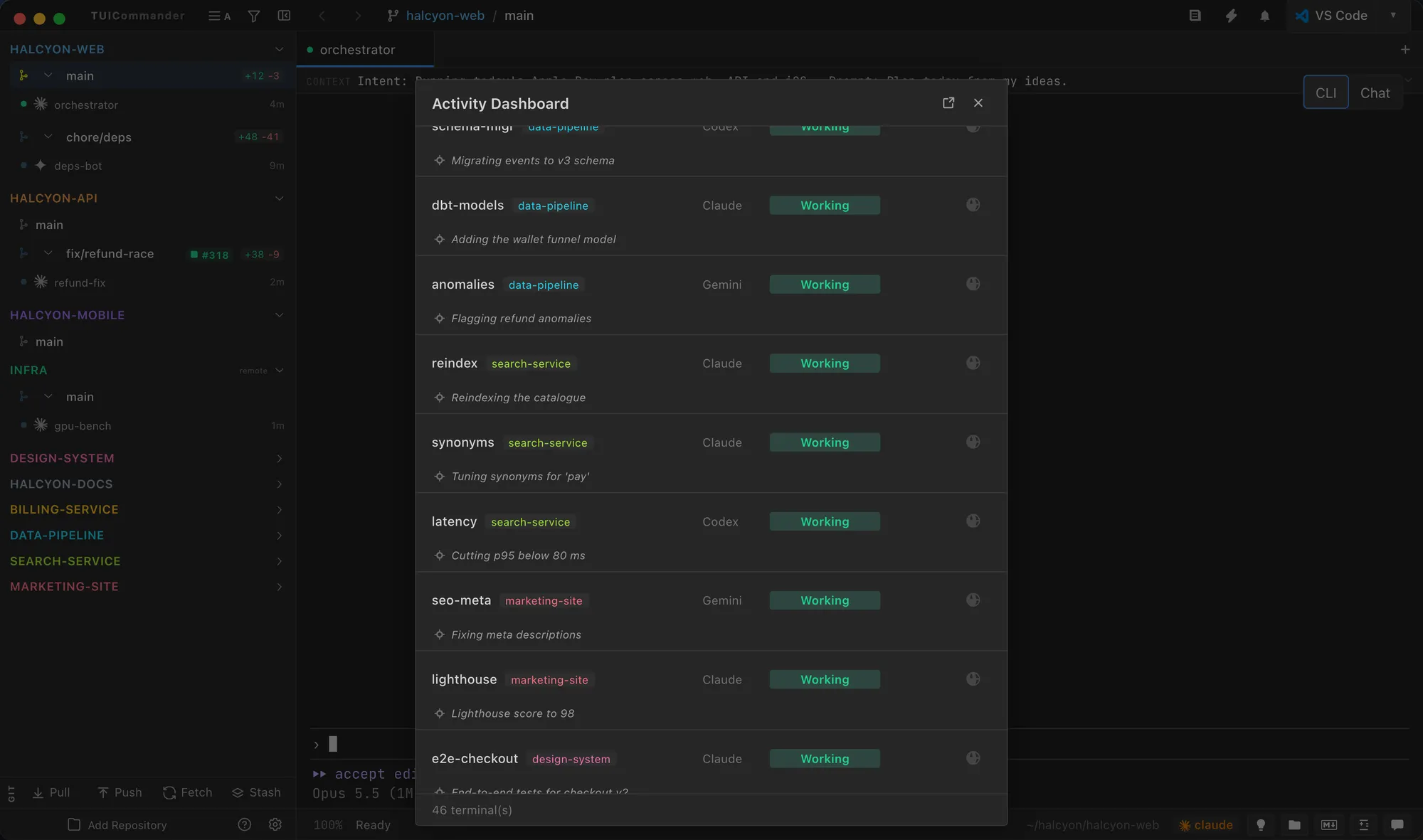
Questions, approvals and rate limits are detected as they appear, and the tab, the sidebar and the notifications tell you which agent is waiting. The Activity Dashboard (Cmd+Shift+A) lists every session's state in one view.

Through TUICommander's MCP tools an orchestrator creates worktrees, starts child agents with a prompt, and sends them messages. Children report back with done or blocked.

AI Chat is a conversation with ego, which TUICommander launches and speaks to over ACP. TUICommander is the environment, with its terminals, repositories and MCP server; ego is the intelligence. Turn on Experimental Features and set the ego executable in Settings → General.
Read the AI Chat guide →